
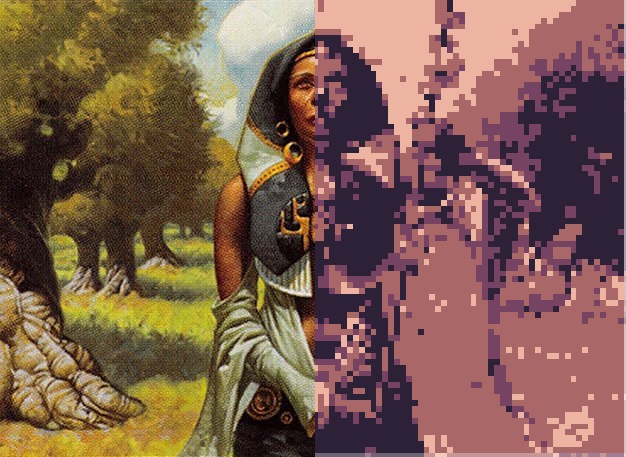
An image to pixel art generator with a custom palette and grid size gives you control over colors and resolution. Adobe Firefly’s pixel art generator creates pixel art from a reference image, guiding palette and style through prompts, then pairs well with a pixel editor where you lock an exact palette and grid.
If you’re making assets for a game with a defined look, “close enough” colors won’t cut it. Maybe every sprite must use the same 16-color palette, or your tileset is built on a strict 32 x 32 grid. Pixel art tools handle these constraints in different ways. AI generators are fast at turning references into stylized pixel art, while dedicated pixel editors let you set an exact canvas size and restrict every pixel to a chosen palette. Most game artists combine the two: generate or convert an image, then enforce the final palette and grid in an editor.
Firefly is clear about where it fits. Adobe notes you can’t manually set pixel size in the pixel art generator beyond the general output resolution, which reaches up to 2000 x 2000 pixels. You can, however, describe your palette and sprite size in the prompt, which gets you much closer to a usable starting point.
Which Pixel Art Editor Lets You Set a Palette, Canvas, and Grid Size?
Several pixel art editor options let you set a palette, canvas, and grid size, each suited to a different step of the workflow. The table below compares four tools.
| Platform | Best for | Key details |
| Adobe Firefly | Turning reference images into pixel-style art quickly | Reference image plus prompt; Pixel art effect; describe palette and sprite size in prompts; output up to 2000 x 2000 pixels; JPEG and PNG downloads; Photoshop integration; commercially safe Firefly models |
| Aseprite | Precise sprite work with locked palettes | Indexed color mode limits a sprite to a set palette of up to 256 colors; preset palettes such as DB16 and Pico-8; loads GPL and PAL palette files; resize sprites to exact dimensions |
| Piskel | A free, browser-based sprite editor | Resize the canvas to custom dimensions; create and manage palettes; export PNG, sprite sheets, and animated GIFs; open source with offline desktop versions |
| Lospec palette list | Finding ready-made game palettes | Hosts community palettes downloadable in GPL format for use in editors like Aseprite |
A common workflow is to create a draft in Firefly, then import it into Aseprite or Piskel to snap colors and pixels to your exact specs.
How to Use a Pixel Editor With a Custom Palette and Canvas Size
To use a pixel editor with a custom palette and canvas size, set your constraints before you draw or import anything.
Pick the canvas size first: Choose dimensions that match your game, such as 16 x 16 for small items or 32 x 32 for characters. In Piskel, you can resize the canvas to custom dimensions.
Load the palette: Download a palette from a library like Lospec in GPL format, then load it into your editor. Aseprite supports GPL and PAL palette files.
Lock colors: In Aseprite, switching to Indexed color mode keeps every pixel tied to your palette, so stray colors can’t sneak in.
Import your draft: Bring in Firefly output or a converted image, scale it to your canvas with nearest-neighbor resampling, and clean up any pixels that don’t read clearly.
Pixel Editor Palette Dimensions: How Many Colors and Pixels to Use
Pixel editor palette dimensions come down to two choices: how many colors you allow and how many pixels each asset uses. Both shape how readable your art looks in the game.
Smaller palettes, such as 8 to 16 colors, create a cohesive retro look and force strong contrast. Preset palettes like Pico-8 and DB16, both available in Aseprite, are popular starting points. Larger palettes allow smoother shading but can make sprites look muddy at small sizes.
For pixel dimensions, match the asset to its on-screen role. A character might be 32 pixels tall, while UI icons might be 16 x 16. Keeping all assets on the same grid makes tiles line up cleanly. When prompting Firefly, include terms like “limited color palette” and “small sprite size” to steer drafts toward these constraints.
FAQ
Can Firefly match my game’s exact palette?
Not exactly. Firefly lets you describe a palette in your prompt and adjust color and tone, but it doesn’t lock output to specific color values. For an exact match, import the result into a pixel editor and apply your palette there.
What file format should I export for game engines?
PNG is the standard choice because it’s lossless and supports transparency. Firefly downloads PNG and JPEG files, and Piskel can export PNG files and sprite sheets for animation.
Can I use Firefly pixel art commercially?
Adobe says Firefly models without the beta label are designed to be safe for commercial use when you follow its generative AI user guidelines. Partner models may have different terms.